

Nak tak macam ni? Bila click Chatbox, dia pergi chatbox. Bila click Followers, dia show our followers. Dan bila click Google +, dia akan tunjuk Google + kita. Ok jom tengok tuto.
1. Layout > Add a Gadget > HTML JavaScript
2. Pastekan code ni:
<style type="text/css">
.tabber {
padding: 0px !important;
border: 0 solid #bbb !important;
}
.tabber h2 {
float: left;
margin: 0 1px 0 0;
font-size: 14px;
padding: 4px;
color: #777;
border: 2px dotted #F5A9BC;
margin-bottom: -1px; /*--Pull tab down 1px--*/
overflow: hidden;
position: relative;
background: transparent;
cursor:url(http://31.media.tumblr.com/13c61bc1c36873c80b9e264bbe4838cb/tumblr_inline_mueowskfKi1qdlkyg.gif), progress;
}
html .tabber h2.active {
color: #fff;
background: #faafbe;
border: 2px solid #FBEFF2; /*--"Connect" active tab to its content--*/
}
.tabber .widget-content {
border: 0px solid #bbb;
padding: 5px;
background: transparent;
clear:both;
margin:0;
}
.codewidget, #codeholder {
display:none;
}
</style>
<script type="text/javascript" src="http://ajax.googleapis.com/ajax/libs/jquery/1.6.0/jquery.min.js"></script>
<script type="text/javascript" src="http://greenlava-code.googlecode.com/svn/trunk/publicscripts/bloggertabs0.1_min.js"></script>
<script type="text/javascript">
$(document).ready(function() {
$('#codeholder').bloggerTabber ({
tabCount : 3
});
});
</script>
<!-- to make sure the widget works, do not alter the code below -->
<div id='codeholder'><p><span ="" style="color:#fff;"> Get this <a href="http://www.bloggersentral.com/2011/05/create-tabbed-content-blogger-widgets.html" target="_blank">tabber widget</a></span></p></div>
3. Warna merah: Ubahlah ikut citarasa masing-masing.
4. Warna biru: Berapa widget yang korang nak letak dalam tabber ni. (aku sarankan 3).
5. Refer gambar bawah ni.

6. Dan save! Dan letakkan kan HTML/Javascript tadi yang korang dah save atas widget yang korang nak combinekan. Contoh macam ni;

(Macam kat sidebar aku, aku letak HTML/Javascript ni betul-betul atas Chatbox)
7. Siap dah. Boleh save dan tadaaa :) Good luck!
 Nota Pink: Boleh tanya kat komen kalau tak tahu :)
Bismillah... Hello people. My blog dari dulu lagi will always use this code for all of my photos here. It will turned into rainbow colour whenever the cursor touch the picture. So, I would like to share to you what code that I have been using all this time. Oh btw, you can refer to the picture below if you dont really get what I mean.

1. Layout > Add a Gadget > HTML JavaScript
2. Pastekan code ni:
<script src="http://fwzynn.googlepages.com/rainbow.user.js" type="text/javascript">/************************************************ Script edited by Eyja Masliza at http://blogeyja.blogspot.com/* Please keep this notice intact***********************************************/</script>
3. Dan click Save! Tadaa... Boleh try okay? :)
Nota Pink: Boleh tanya kat komen kalau tak tahu :)

Nak tak popular post yang macam ni? Selalunya kita nampak yang warna warni, kan? Ada jugak popular post yang warna berselang-seli. Yang aku punya ni, totally warna yang seragam, sebab aku tak suka sangat banyak-banyak colour. Tu yang aku ubah tu.
Heheh (sorry saya memang pengubah sikit). Tapi basecode ni daripada Nabila Medan. Jadi jangan copy ya? Kesian dia. Aku ubah part warna, font, size font, border radius je. Yang basecode memang totally dia. Ok, lets check it out.
1. Dashboard > Layout > Add a Gadget > Popular Post
2. Sila untick Image thumbnail dan jugak Snippet.

3. Save. Ok tak habis lagi gais, sabar jap. Hihi
4. Pergi ke Template > Edit HTML > Tekan anak panah kat number 11 tu >
5. CTRL + F, dan carik code ni
]]></b:skin>
6. Jumpa? Kalau dah, copy code kat bawah ni
/* Rainbow Popular Post by Nabila Medan and reedit by Eyja Masliza*/
#PopularPosts1 ul li a:hover{
font-style: normal; font-weight: bold; color:#ffffff;text-decoration:none}
#PopularPosts1 ul li a {
-webkit-text-size-adjust: auto; -webkit-text-stroke-width: 0px; color: #000000; display: block;
font-family: 'Itim';
font-size: 16px; font-style: justify; font-variant: normal; font-weight: normal;
letter-spacing: normal; line-height: 18px; margin: 0px 40px 0px 0px; min-height: 30px; orphans: 2; padding: 0px; text-align: -webkit-auto; text-decoration: none !important; text-indent: 0px; text-transform: none; white-space: normal; widows: 2; word-spacing: 0px;}
#PopularPosts1 ul li .item-thumbnail{
float:left;border:0;margin-right:10px;background:transparent;padding:0;width:51px;height:51px}
#PopularPosts1 ul li:first-child:after,#PopularPosts1 ul li:first-child + li:after,#PopularPosts1 ul li:first-child + li + li:after,#PopularPosts1 ul li:first-child + li + li + li:after,#PopularPosts1 ul li:first-child + li + li + li + li:after,#PopularPosts1 ul li:first-child + li + li + li + li + li:after,#PopularPosts1 ul li:first-child + li + li + li + li + li + li:after,#PopularPosts1 ul li:first-child + li + li + li + li + li + li + li:after,#PopularPosts1 ul li:first-child + li + li + li + li + li + li + li + li:after,#PopularPosts1 ul li:first-child + li + li + li + li + li + li + li + li + li:after{
font-family: 'Itim';
position:absolute;top:10px;right:5px;border:2px solid #fff;background:#fceaef;-webkit-box-shadow:0px 0px 5px #000;-moz-box-shadow: 0px 0px 5px #000;width:30px;height:30px;line-height:1em;text-align:center;font-size:28px; text-align:center; border-radius:0px 25px 0px 0px; color:#F7819F}
#PopularPosts1 ul li:first-child + li + li + li + li + li + li + li {
background:#F7819F;width:90%}
#PopularPosts1 ul li:first-child + li + li + li + li + li + li + li:after{
content:"10"}
#PopularPosts1 ul li:first-child + li + li + li + li + li + li + li +li{
background:#F7819F;width:90%}
#PopularPosts1 ul li:first-child + li + li + li + li + li + li + li + li:after{
content:"9"}
#PopularPosts1 ul li:first-child + li + li + li + li + li + li + li +li +li{
background:#F7819F;width:90%}
#PopularPosts1 ul li:first-child + li + li + li + li + li + li + li + li + li:after{
content:"8"}
#PopularPosts1 ul li:first-child + li + li + li + li +li{
background:#F7819F;width:90%}
#PopularPosts1 ul li:first-child + li + li + li + li + li:after{
content:"7"}
#PopularPosts1 ul li:first-child + li + li + li + li + li +li{
background:#F7819F;width:90%}
#PopularPosts1 ul li:first-child + li + li + li + li + li + li:after{
content:"6"}
#PopularPosts1 ul li:first-child + li + li + li + li{
background:#F7819F;width:90%}
#PopularPosts1 ul li:first-child + li + li + li + li:after{
content:"5"}
#PopularPosts1 ul li:first-child + li + li + li{
background:#F7819F;width:90%}
#PopularPosts1 ul li:first-child + li + li + li:after{
content:"4"}
#PopularPosts1 ul li:first-child + li + li{
background:#F7819F;width:90%}
#PopularPosts1 ul li:first-child + li + li:after{
content:"3"}
#PopularPosts1 ul li:first-child + li{
background:#F7819F; width:90%}
#PopularPosts1 ul li:first-child + li:after{
content:"2"}
#PopularPosts1 ul li:first-child{
background:#F7819F;width:90%}
#PopularPosts1 ul li:first-child:after{
content:"1"}
#PopularPosts1 ul{
margin:0;padding:0px 0;list-style-type:none}
#PopularPosts1 ul li{
position:relative;margin:6px 0;border-radius:0px 30px 0px 30px;border:2px solid #ffffff;padding:10px;}
7. Dan pastekan code yang dah copy tadi atas ]]></b:skin>
8. Warna kuning: warna font bila cursor dihalakan.
9. Warna hijau: warna tajuk entri anda,
10. Warna turqoise: font yang digunakan.
11. Warna jingga: background color untuk number
12. Warna purple: border radius untuk kotak number
13. Warna pink: border untuk taju entry anda.
14. Warna merah: tu semua warna background untuk tajuk-tajuk entries anda.
15. Boleh Preview dulu, dah tengok cantik kena dengan warna anda suka, click Save Template.
 Nota Pink: Boleh tanya kat komen kalau tak tahu :)
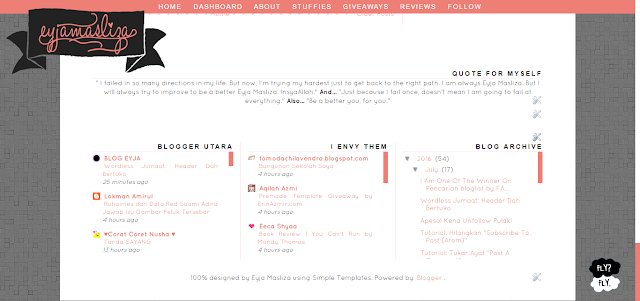
Hello there! Would you like to know how I organized my Blog List and Blog Archive very well? Please say yes, please! Well. Im using scroll bar. It is suits for any kind of blog. Because it will make your blog organized and more structured. For not go further, you may enjoy the tutorial! :)
CTRL+C untuk copy code-code tutorial dalam BLOG EYJA ni.1. Dashboard > Template > Edit HTML
2. CTRL+F your own title for the code. Example of mine: Blogger Utara
3. Found your title? Then scroll down a lil bit, you may found this code:
<div class='widget-content'>4. Replace it with this code:
<div class='widget-content' style='overflow:auto; height:200px'>
5. Preview, if everything is okay then, save the template. Done! :)
 200 : you may change it according to the height that you want.
Subscribe to:
Posts (Atom)


